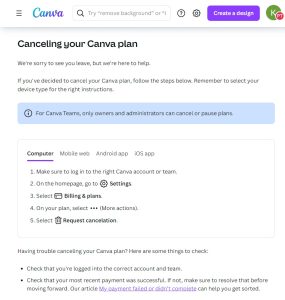
Here’s a quick guide on how to cancel your Canva subscription. Whether you’re moving to another design platform or simply adjusting your budget, this guide will walk you through the cancellation steps with ease. Canva offers intuitive design tools and templates, but if you’ve decided to discontinue, follow this step-by-step guide for a smooth experience. If you’re exploring other tools, check out options in the Worksuite category.
How to Cancel a Canva Subscription
Canceling your Canva subscription is straightforward when you know the steps. Whether you’re switching to another platform or simply reducing your expenses, follow this guide for a hassle-free cancellation.
How to Cancel Canva: Step-by-step
Step 1: Log into Your Canva Account
To begin, log in to your Canva account on the Canva website. Ensure you’re using the correct account associated with your subscription plan.
Step 2: Navigate to Account Settings
Once logged in, navigate to your Account Settings. You can access this by clicking on your profile icon in the top-right corner and selecting Account settings from the dropdown menu.
Step 3: Access Billing & Plans
In the Account settings menu, select Billing & plans. This section will display your current plan details, including renewal dates and associated features.
Step 4: Choose More Actions
Under your active plan, click on the More actions button. This will present additional options related to your subscription.
Step 5: Request Cancellation
Select Request cancellation from the dropdown menu. Canva will guide you through a series of prompts to confirm your decision.
Step 6: Confirm the Cancellation
Follow any on-screen instructions to finalize your cancellation request. Canva may ask if you want to pause your subscription instead. Confirm your choice, and once completed, Canva will send you a confirmation email.
Step 7: Verify Your Cancellation
Check your email for a confirmation message from Canva. This email serves as verification that your subscription will not renew at the end of your current billing cycle.
What Happens After Cancellation?
When you cancel your Canva subscription, your designs and Brand Kit will remain intact. You’ll still be able to access these assets, but you will lose access to premium features once your current billing period ends.
Pausing Your Canva Plan
If you’re unsure about canceling completely, Canva allows you to pause your subscription for up to three months. Here’s how:
Follow steps 1-4 as outlined above.
Select Cancel Subscription and continue with the prompts.
Choose the option I want to pause my subscription instead of canceling.
Confirm by selecting Pause for 3 months.
This option is useful if you anticipate needing Canva’s premium features again in the near future.
Troubleshooting Cancellation
If you encounter issues during the cancellation process, consider the following:
Verify Account Details: Ensure that you’re logged into the correct account and team associated with your Canva Pro or Canva for Teams plan.
App Store or Google Play Purchases: If you purchased your subscription through the iOS App Store or Google Play Store, follow the specific cancellation instructions for your device:
Resolve Payment Issues: If your most recent payment failed, settle the balance before canceling to avoid complications.
Need Help? Contact Canva Support
If you need further assistance, reach out to Canva’s support team. Here’s what to include in your request:
Screenshot: Provide a screenshot of your account or team with an active Canva Pro or Canva for Teams plan.
Invoice or Order ID: Include a copy of your invoice or order ID. If you purchased your plan through the App Store or Google Play, provide the order/receipt ID from the respective platform.
For more information on finding your Canva invoice, order, or receipt number, visit this support page.
Conclusion
Canceling a Canva subscription is a straightforward process when you follow the correct steps. By accessing your account settings, reviewing your subscription details, and confirming the cancellation, you can ensure a smooth transition. If you need more detailed information or have specific questions about your Canva account, you can also refer to their Help Center or contact their support team directly.
Looking for Alternatives?
If you’re exploring other tools after canceling your Canva subscription, here are some excellent alternatives for design, productivity, and team collaboration:
Google Workspace: A comprehensive suite of productivity tools including Gmail, Docs, Drive, and more, ideal for seamless team collaboration and document management.
Tactiq.io: A tool for capturing real-time meeting transcriptions and notes, making virtual meetings more productive and efficient.
Microsoft 365: A complete productivity suite with Word, Excel, PowerPoint, and Teams, providing essential tools for business and creative projects.
Notion: An all-in-one workspace for note-taking, task management, and project collaboration, perfect for personal and team organization.
Stake: A platform designed for easy investing in global stocks, helping individuals diversify their portfolios.
You should also check out other tools from related categories like Project Management and Marketing and Analytics to find comprehensive solutions that enhance your creative workflow and business strategies. Additionally, be sure to look at Subscribed Deals for any current offers to save on similar services.